Skip to content

How to use the Recite Me toolbar

You can use the Recite Me toolbar for help with reading, navigation, and translation on our website. This page explains how to use it.

Jump to a section on this page

Need help using our website? Try the Recite Me toolbar:

You can open the Recite Me toolbar by tapping the ‘Accessibility & Languages’ button at the bottom of any page on our website. It includes features like:

Learn how to use the Recite Me toolbar:

To translate our website, tap the pink ‘Accessibility & Languages’ button in the bottom-left of your screen. You can use the ‘Change Language’ button for quick access to languages, or open the full Recite Me accessibility toolbar by tapping ‘Accessibility Options’.

After you open the Recite Me toolbar, you’ll see a range of options for customising how our website looks and ways you can interact with the content. Tap this icon to choose a language:

A screenshot of the Recite Me translation button.

Some languages can be read out-loud using the Recite Me toolbar. Languages that can be read out-loud will include a speaker icon that looks like this:

A screenshot showing an example of a language (Gujarati) that can be read-aloud by the Recite Me toolbar.

To turn on the text-to-speech (screen reader) function, tap on this icon:

A screenshot of the Recite Me text-to-speech icon.

After tapping the icon, the text-to-speech (screen reader) toolbar will appear:

A screenshot of the Recite Me text-to-speech options bar.
A screenshot of the decrease text size icon from the Recite Me toolbar.
A screenshot of the font icon from the Recite Me toolbar.
A screenshot of the Focus Text icon from the Recite Me toolbar.
A screenshot of the increase text size icon from the Recite Me toolbar.
A screenshot of the change colour icon from the Recite Me toolbar.
A screenshot of the Enable Ruler icon from the Recite Me toolbar.
A screenshot of the Cursor Options icon from the Recite Me toolbar.
A screenshot of the Screen Mask icon from the Recite Me toolbar.
A screenshot of the Page Options icon from the Recite Me toolbar.
A screenshot of the Dictionary icon from the Recite Me toolbar.
A screenshot of the Page Summary icon from the Recite Me toolbar.
A screenshot of the Simplify Content icon from the Recite Me toolbar.
A screenshot of the Reset icon from the Recite Me toolbar.
A screenshot of the Information icon from the Recite Me toolbar.

Here’s an overview:

Frequently asked questions about the Recite Me toolbar:

Here are some answers to frequently asked questions about the Recite Me toolbar:

No.

Recite Me is cloud-based software, so there’s no need to download or install anything on your device to make it work.

To launch the Recite Me accessibility toolbar, just tap the pink ‘Accessibility & Languages’ button in the bottom-left of your screen.

To disable the automatic text-to-speech (screen reader) function, tap the green text-to-speech icon on the text-to-speech toolbar. It looks like this:

A screenshot of the Recite Me text-to-speech options bar.

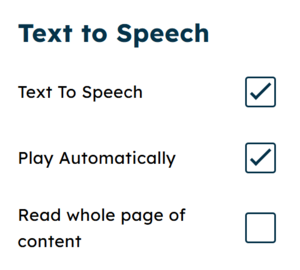
After tapping the green text-to-speech icon, tap on the checkbox next to ‘Play Automatically’ to disable (or re-enable) the automatic text-to-speech (screen reader) function.

A screenshot of the Recite Me text-to-speech options panel.

Yes.

The Recite Me toolbar works on most operating systems and devices. This includes Android, iOS, macOS, Windows, and Linux devices.

Yes.

To create an MP3 audio file, just highlight the text you’d like to download as an audio file, then tap the ‘Download Audio’ button. It looks like this:

A screenshot of the Download Audio icon from the Recite Me toolbar.

After you tap the ‘Download Audio’ icon, your device should start to download an MP3 file. You’ll usually find the downloaded file in your device’s Downloads folder.

To close the Recite Me toolbar, just tap the ‘X’ icon marked ‘Close’ to the top-right of the toolbar.

When prompted, tap ‘Yes’ to confirm you’d like to close the Recite Me toolbar.

Learn more about accessibility with Be One Homes:

We’re committed to being inclusive and accessible in everything we do.

We want every customer, tenant, and member of our community to be able to access our services, understand our communications, and interact with us confidently and independently, regardless of disability, language, literacy level, or digital access.

Our Accessibility webpage sets out our ongoing commitment to improving accessibility across all our communications and services, including letters, printed materials, website content, emails, digital tools, and in-person interactions. You can tap here to visit our Accessibility page.

You may also be interested in:

All pages in this section: